How to Integrate an AI Receptionist with Phone.com
Phone.com is a cloud-based phone service that simplifies call management, team collaboration, and integrates with various CRMs for businesses. AI Receptionist is a conversational AI answering service that answers calls, takes messages, and schedules appointments around the clock, ensuring your business never misses a beat.
When combined, Businesses and companies will be in a position to redirect the Phone.com-originated calls on AI Receptionist depending on predetermined identifiers such as missed calls, after-hours, or weekends. This integration guarantees that no customer inquiry goes unanswered and maintains operations efficiently and professionally.
Here we are going to guide you on how to integrate Phone.com with AI Receptionist across various scenarios, step-by-step.
AI Receptionist and Phone.com Integration Prerequisites
It is a good idea to get everything properly in place in advance to ensure the integration of Phone.com and AI Receptionist is established successfully and without any disruptions. Make sure you’ve completed the following:
- An active Phone.com account with admin access
- A AI Receptionist account created.
- Your AI Receptionist agent set up and assigned a phone number.
- Basic understanding of Phone.com dashboard and Call Handling Rules
How Does the Integration Work?
Integrating Phone.com and AI Receptionist is not a difficult process leveraging Phone.com ‘s powerful call forwarding and routing features. By directing specific call flows to your AI Receptionist agent dedicated phone number, you create a seamless bridge that ensures comprehensive call coverage. This is how it works:
Step 1: Set Up Your AI Receptionist Account
Visit dialmycalls.com, sign up and create your AI phone agent. After that, you will be given a local phone number.

Step 2: Log in to Your Phone.com Control Panel
Sign in to your Phone.com account at control.phone.com with administrator permissions to layout the call routing and forwarding.
Step 3: Navigate to Call Handling Rules
Once you sign in, you will be able to manage your call routing logic through the Call Handling Rules section for the specific number you wish to integrate or configure.
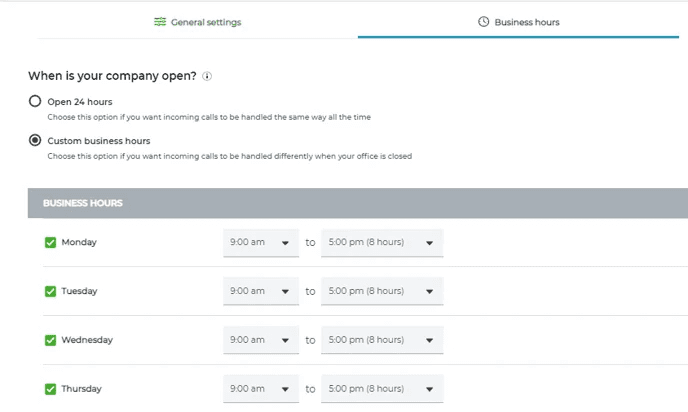
Scenario 1: Forwarding After-Hours & Weekend Calls
AI Receptionist makes sure that no call falls into the abyss, even when your team is not available during the evenings, weekends or any holidays. It attracts leads, answers queries, and offers customer service 24/7 for customer satisfaction. Here’s how to configure it using Phone.com call forwarding feature:
Step 1: Set Up Your Business Hours Schedule in Phone.com
● Go to control.phone.com and log in to your Phone.com Control Panel.
● Hover over Configure in the top menu and then click on Add a Schedule.
● Enter a Schedule Name to define it for clarity (e.g. “My Business Hours”).
● Choose your business Weekday-Weekend or Custom for the Schedule Type.
● Select the Days & Times for your business (e.g., Monday to Friday, From 9:00 AM to 5:00 PM).
● For accurate routing, check that the Time Zone matches your business location to make call routing seamless.
● Click on Save Changes button.
Step 2: Apply Forwarding Rule for “Outside of Business Hours”
- Click on Manage Numbers under the Configure menu.
- Locate the Phone.com number you wish to integrate and click on the pencil icon to edit.
- In the number settings page, scroll down to the Call Handling Rules section and then click on Add New Rule or you can also Edit an existing primary rule.
- For Apply During, select “Outside ALL Schedules” or “Outside of [Your Schedule Name]” from the dropdown.
- For Operation, choose Forward Call from the dropdown.
- In the Phone Number field, enter your unique AI Receptionist phone number.
- Click Save Rule Settings and ensure you Save Changes or Apply Changes for the number’s configuration.
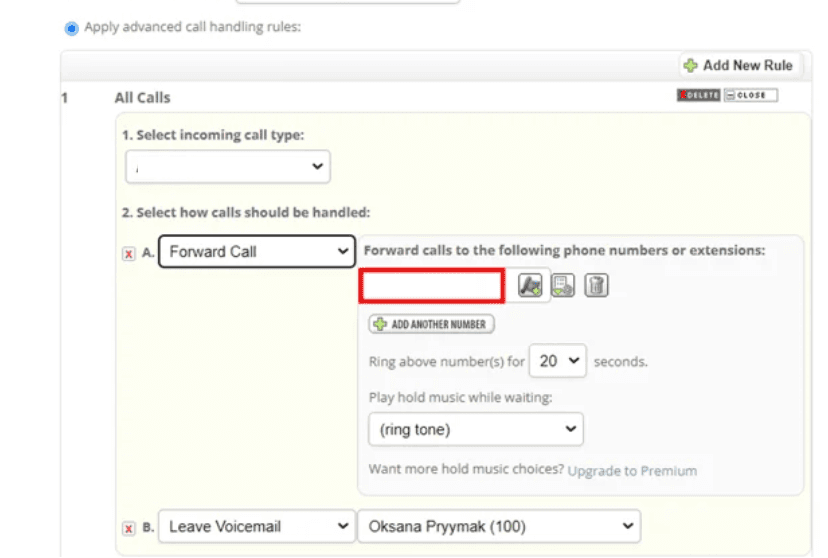
Scenario 2: Forwarding Missed or Busy Calls
Callers should not go into a generic voicemail when your human agents are occupied, already on another call, or do not pick up. Forwarding missed or busy calls to AI Receptionist means that no customer interaction will be halted, and all actions will be done swiftly and intelligently. Here is how:
Step 1: Access Call Handling Rules for Your Number
- Go to control.phone.com and log in.
- Hover over Configure → click Manage Numbers.
- Next to the specific Phone.com number, Click on Edit.
- In the Call Handling Rules section, click on the Add New Rule or you can also edit the existing one as well.
Step 2: Configure Rule for “If not answered”
- Under the Condition dropdown, choose If not answered.
- For Operation, select Forward Call.
- Enter your designated AI Receptionist phone number in the Phone Number field.
- Set a ring duration (e.g., “after 15 seconds” or “after 4 rings”) before the call forwards.
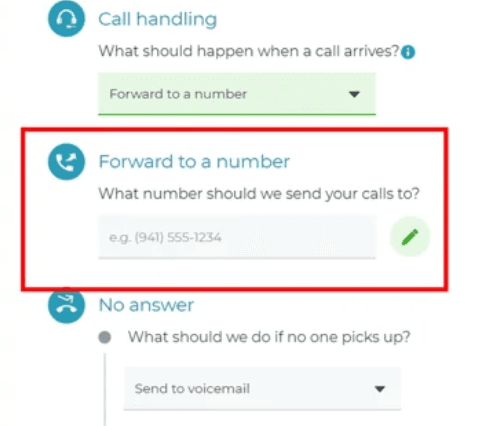
Step 3: Configure Rule for “If busy”
- Click Add New Rule again (if Phone.com requires separate rules).
- Under the Condition dropdown, choose If busy.
- For Operation, select Forward Call.
- Enter your AI Receptionist phone number in the Phone Number field.
- Click Save Rule Settings and ensure all changes are applied to your number’s configuration.
Your Phone.com line will ring for your agents first. Only if they are busy or don’t answer will calls automatically go to AI Receptionist for instant assistance.
Scenario 3: Forwarding All Calls to AI Receptionist
In case you prefer AI Receptionist to be the default response that answers your callers, enabling full-time forwarding makes all incoming calls arrive directly to your AI agent. This is perfect when you need to automate triage, collect basic information, and offload when necessary. Here is how:
Step 1: Optimize Your Call Flow for Direct Forwarding
- Go to control.phone.com and log in to your Phone.com Control Panel.
- Hover over Configure → click Manage Numbers.
- Next to the Phone.com number you want to configure, Click on Edit.
- Locate and set the primary rule that applies to All Calls in the Call Handling Rules.
- Make Sure that any other rules like voicemail, time-based rules or other menus that might interrupt calls are either deleted or disabled for seamless integration.
Step 2: Set the Primary Rule to Forward to AI Receptionist
- For your primary “All Calls” rule, ensure the Operation dropdown is set to Forward Call.
- In the Phone Number field, enter your designated AI Receptionist phone number.
- Click Save Rule Settings and Apply Changes to your Phone.com number.
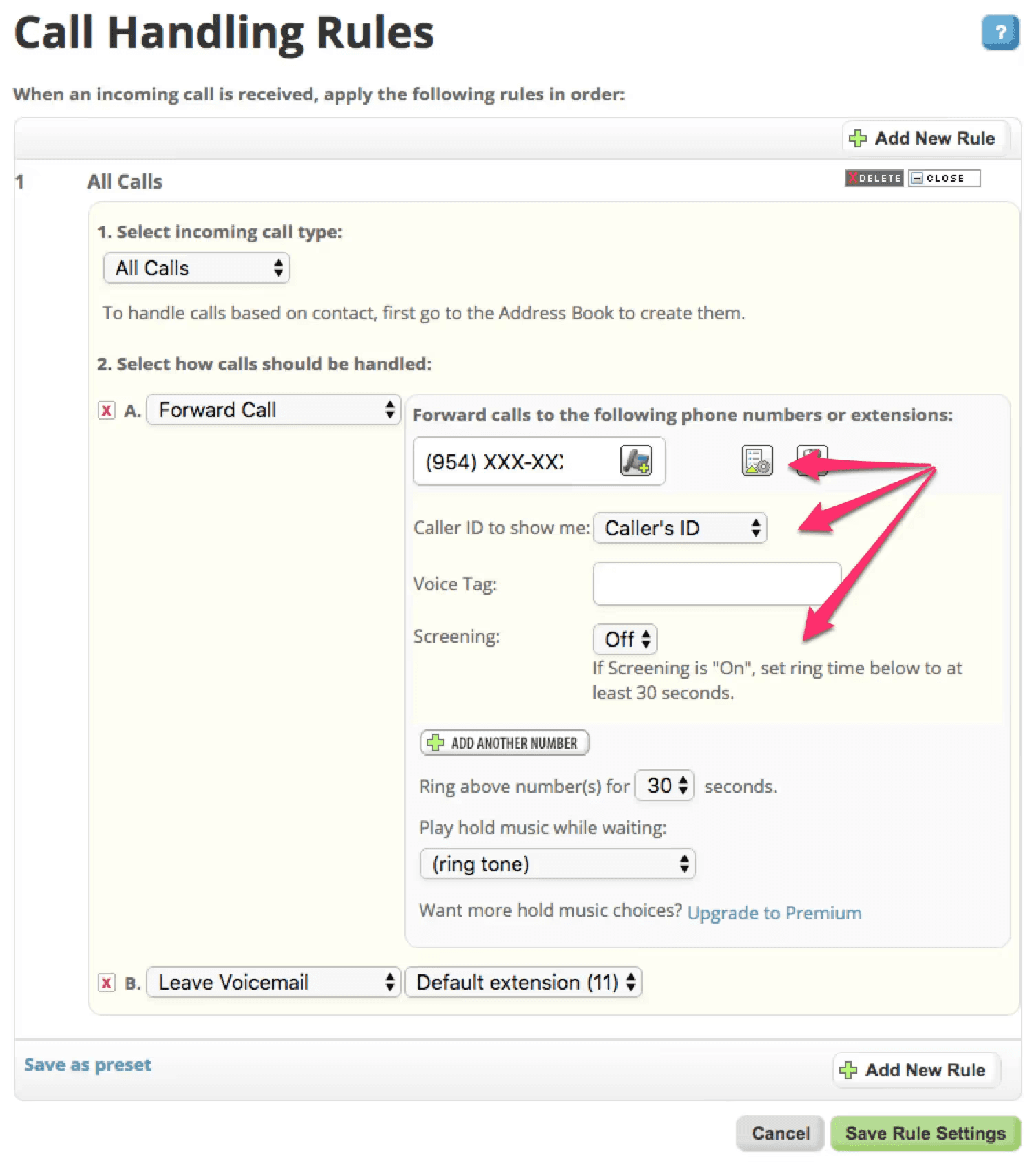
Now, all incoming calls to this Phone.com number will be directly received by your AI Receptionist agent. You can still track calls within Phone.com’s analytics, but they will be handled by AI Receptionist’s intelligent system.
Testing Your AI Receptionist Integration
It is essential to test your setup to ensure calls are being correctly routed to your AI Receptionist agent. This quick check confirms everything is working smoothly and gives you the peace of mind.
- From a different phone, dial your Phone.com number.
- Based on your chosen scenario, verify that your AI Receptionist agent answers the call as expected:
For after-hours forwarding: Call your Phone.com number during your defined non-business hours.
For missed/busy call forwarding: Call your Phone.com number and let it ring, or simulate a busy line, to confirm AI Receptionist picks up.
For forwarding all calls: In this case, any call to your Phone.com number should go directly to AI Receptionist.
- If you encounter any issues, you can recheck your steps in Phone.com Call Handling Rules to identify if you have done any misconfigurations or conflicting rules.
Troubleshooting Tips
To make your experience seamless with setting up your Phone.com and AI Receptionist integration, here are some troubleshooting tips to solve the most frequent problems that may occur:
- Correct AI Receptionist Number: Double-check that the AI Receptionist phone number you entered into Phone.com setting is absolutely accurate, including the correct country code if necessary.
- Conflicting Rules: The most common issue! Ensure no other Phone.com rules (like voicemail directly on the number, a “ring group,” or other auto-attendants) are intercepting calls before they can reach your AI Receptionist forwarding rule. Review the order of your call handling rules if applicable.
- Ring Delay Too Short/Long: If you’ve set a ring delay for “missed calls,” select a good time for your human agents to genuinely attempt to answer but not so long that callers hang up.
Conclusion
When you connect AI Receptionist to Phone.com, you will gain the ability to deal with calls 24/7, whether you need after-hours, overflow, or full-time coverage. With the set of powerful routing and forwarding tools in Phone.com, no call can be lost, and AI Receptionist provides AI-driven interaction, helping to prequalify leads and serve customers in real-time. This strongly integrated package improves your professionalism, responsiveness and operational effectiveness throughout the day. It’s time to transform every interaction into a lasting connection, keeping your business Always On. Always Ready. Always Growing.

Phone.com