How to Integrate an AI Receptionist with Zoom Phone
Zoom Phone is a cloud-based VoIP system that helps businesses manage their phone communications efficiently. AI Receptionist, on the other hand, is a conversational AI answering service that handles calls, takes messages, and books appointments around the clock.
When combined, companies will be in a position to redirect calls from Zoom Phone to AI Receptionist depending on predetermined identifiers such as missed calls, after-hours, or weekends. This integration guarantees that no customer inquiry goes unanswered and maintains operations efficiently and professionally.
Here we are going to guide you step-by-step on how to integrate Zoom Phone with AI Receptionist for different scenarios.
AI Receptionist and Zoom Phone Integration Prerequisites
It’s a good idea to get everything properly in place to ensure the integration of Zoom Phone and AI Receptionist is established successfully and does not have any issues. Make sure you’ve completed the following:
- An active Zoom Phone account with admin access.
- A AI Receptionist account created and fully set up.
- Your AI Receptionist agent’s dedicated phone number (this will be provided to you upon AI Receptionist account setup and will be visible in your AI Receptionist dashboard).
- Basic understanding of navigating your Zoom web portal settings.
How Does the Integration Work?
Integrating Zoom Phone with AI Receptionist is straightforward. You’ll simply configure call forwarding rules within your Zoom web portal to direct calls to your unique AI Receptionist agent’s phone number. This setup is managed entirely within your Zoom Phone settings.
Step 1: Set Up Your AI Receptionist Account
Visit dialmycalls.com, sign up and create your AI phone agent. After that, you will be given a local phone number.
Step 2: Log in to Your Zoom Web Portal
Go to zoom.us. Sign in to your Zoom account that will have admin access for Zoom Phone.
Step 3: Go to Phone Settings
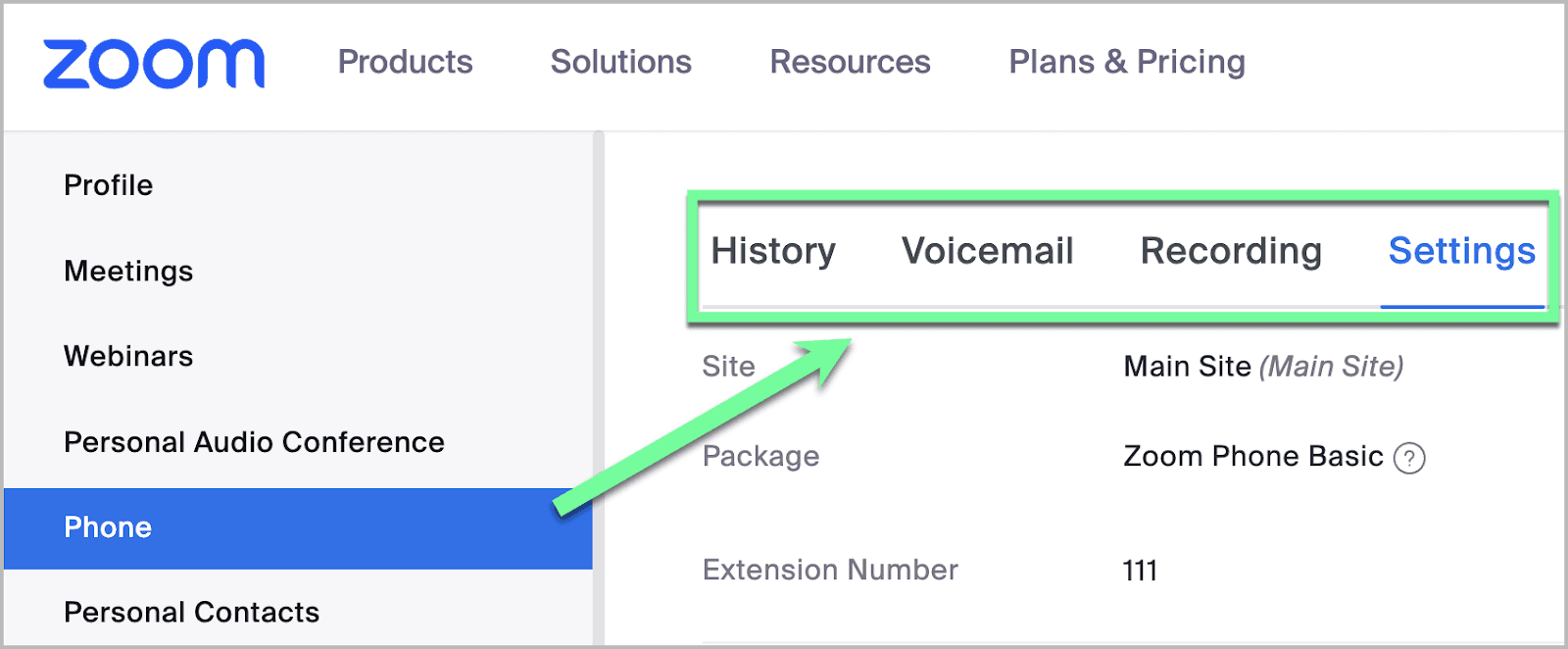
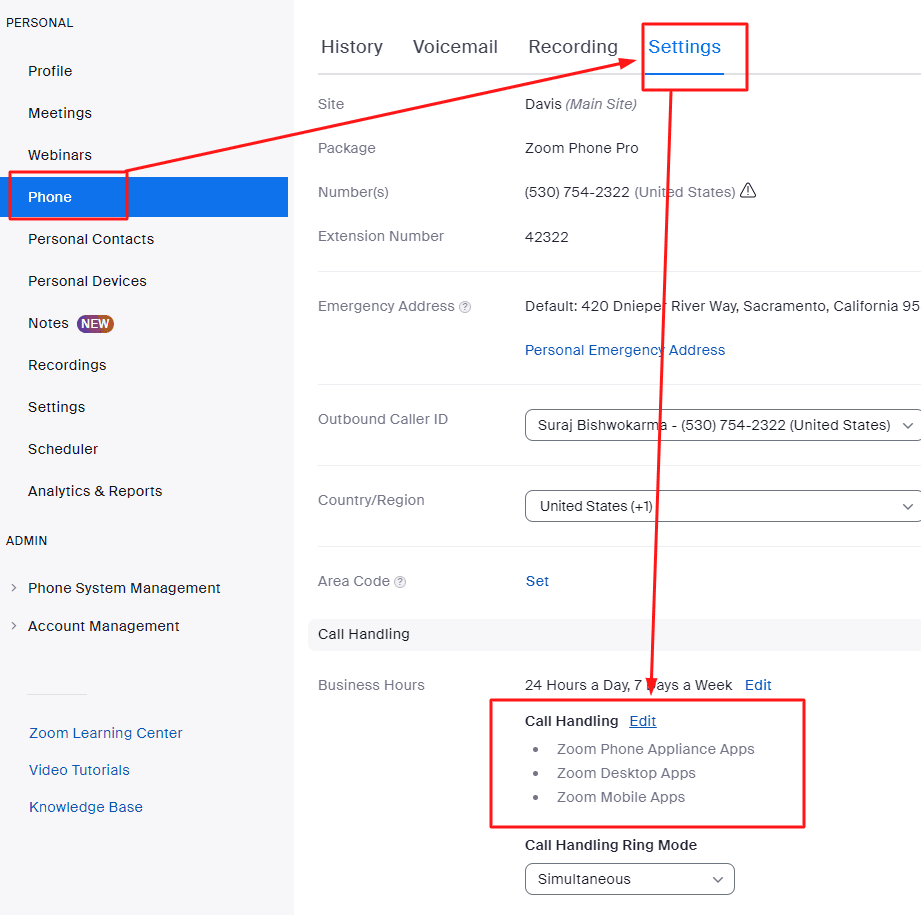
Once you get logged in, go to the left-hand menu. Click on Phone and then go to the Settings tab.
Scenario 1: Forward After-Hours & Weekend Calls to AI Receptionist
AI Receptionist ensures you never miss a call, even outside of business hours. Whether it’s evenings, weekends, or holidays, it can handle inquiries, support customers, and capture leads 24/7. Here’s how to set it up:
Step 1: Go to Call Handling Settings
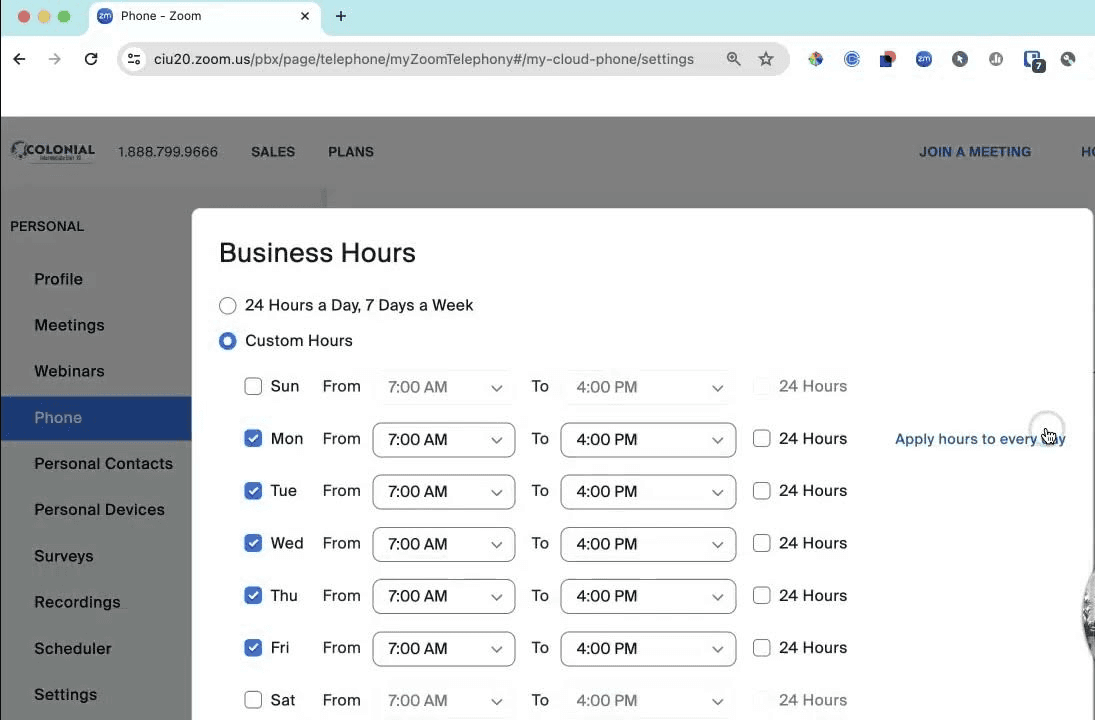
In Zoom Phone, go to the Settings tab and then to Call Handling. Click Edit next to Business Hours.
Step 2: Define Business Hours
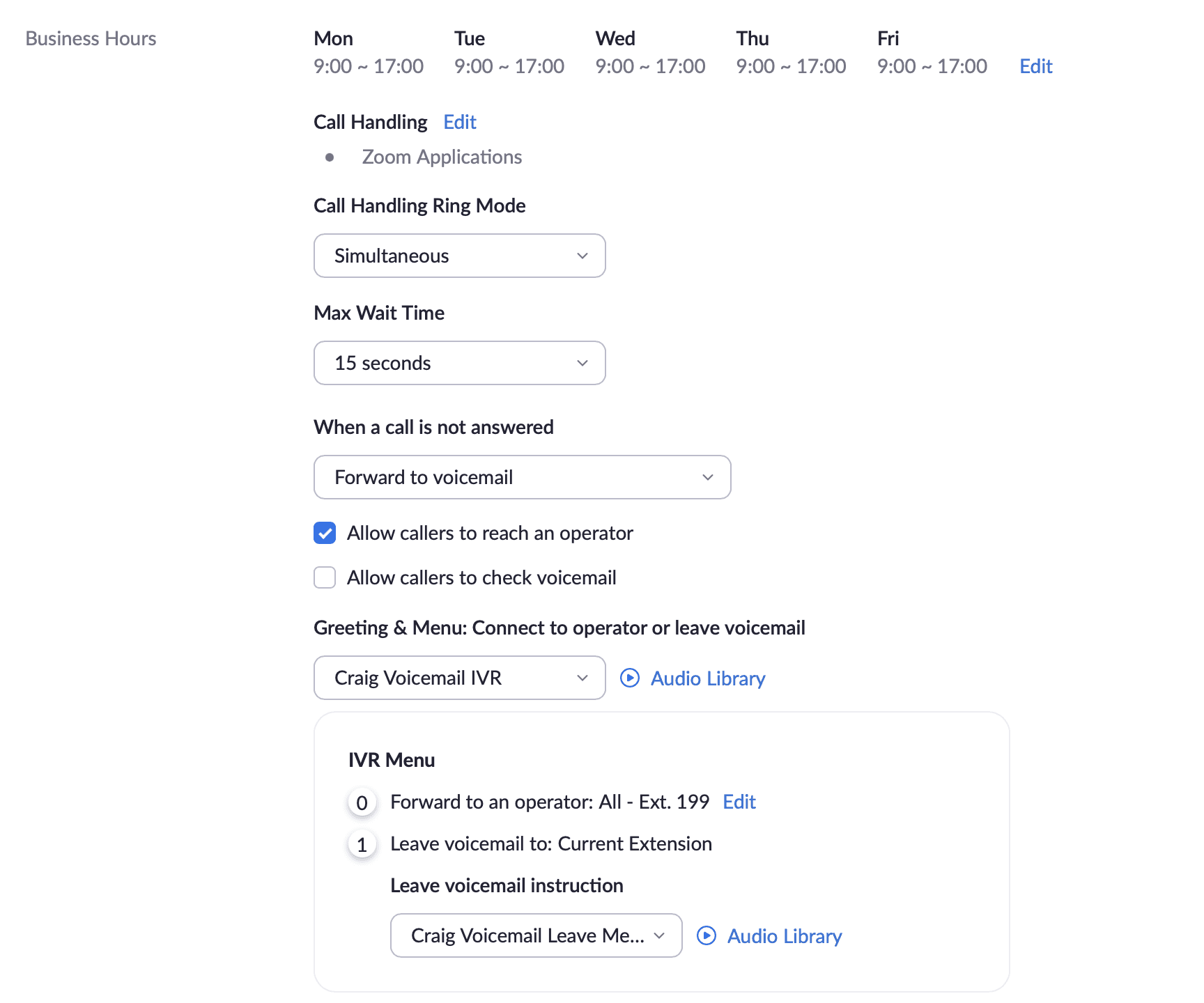
In the pop-up window, Choose Custom Hours and put your usual working days/times there (e.g. Mon–Fri, 9:00–17:00). Click OK to save. This defines what Zoom considers Closed Hours for your account.
Step 3: Configure Closed Hours Call Handling
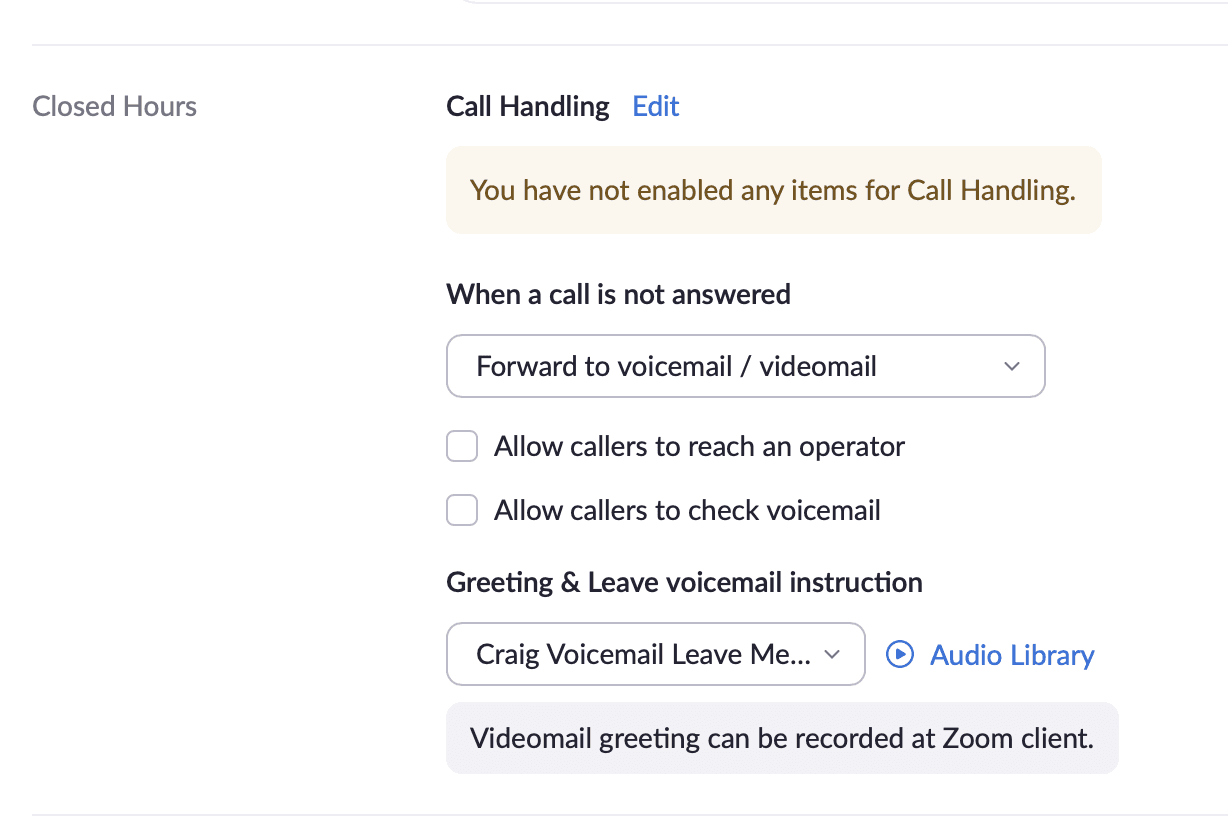
Back under Call Handling, click Edit next to Closed Hours.
Step 4: Add AI Receptionist Number as an External Contact
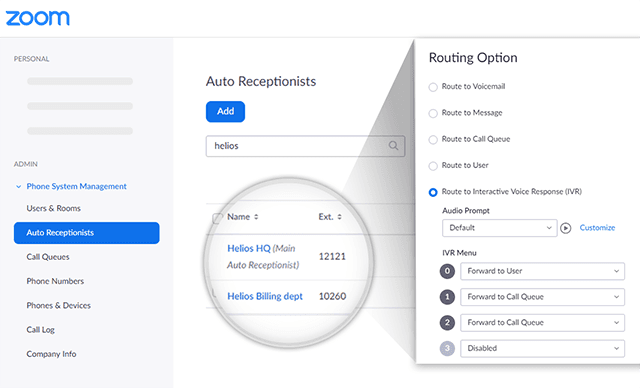
In the popup, click on Add Phone Number, pick your country and enter the AI Receptionist number. Add a label like AI Receptionist Agent for clarity and ease, then click Save.
Step 5: Set When a call is not answered
Under When a call is not answered, choose the AI Receptionist number you just added from the dropdown.
Step 6: Disable Require to press 1
Uncheck the box that says Require to press 1 so callers get connected instantly.
Step 7: Save Your Changes
Click Save at the bottom. Now your after-hours calls will go straight to AI Receptionist.
Scenario 2: Forwarding Missed or Busy Calls to AI Receptionist (Conditional Forwarding)
Callers should not go into voicemail when your human agents are occupied, already on another call, or do not pick up. Use of missed or busy calls forwarded to AI Receptionist means that no customer interaction will be stopped cold, and all actions will be done swiftly and intelligently. Here is how:
Step 1: Open Business Hours Call Settings
Go to Call Handling, then click Edit next to Business Hours.
Step 2: Add AI Receptionist Number (if not already added)
If the AI Receptionist number isn’t already added, click Add Phone Number and follow the steps from Scenario 1.
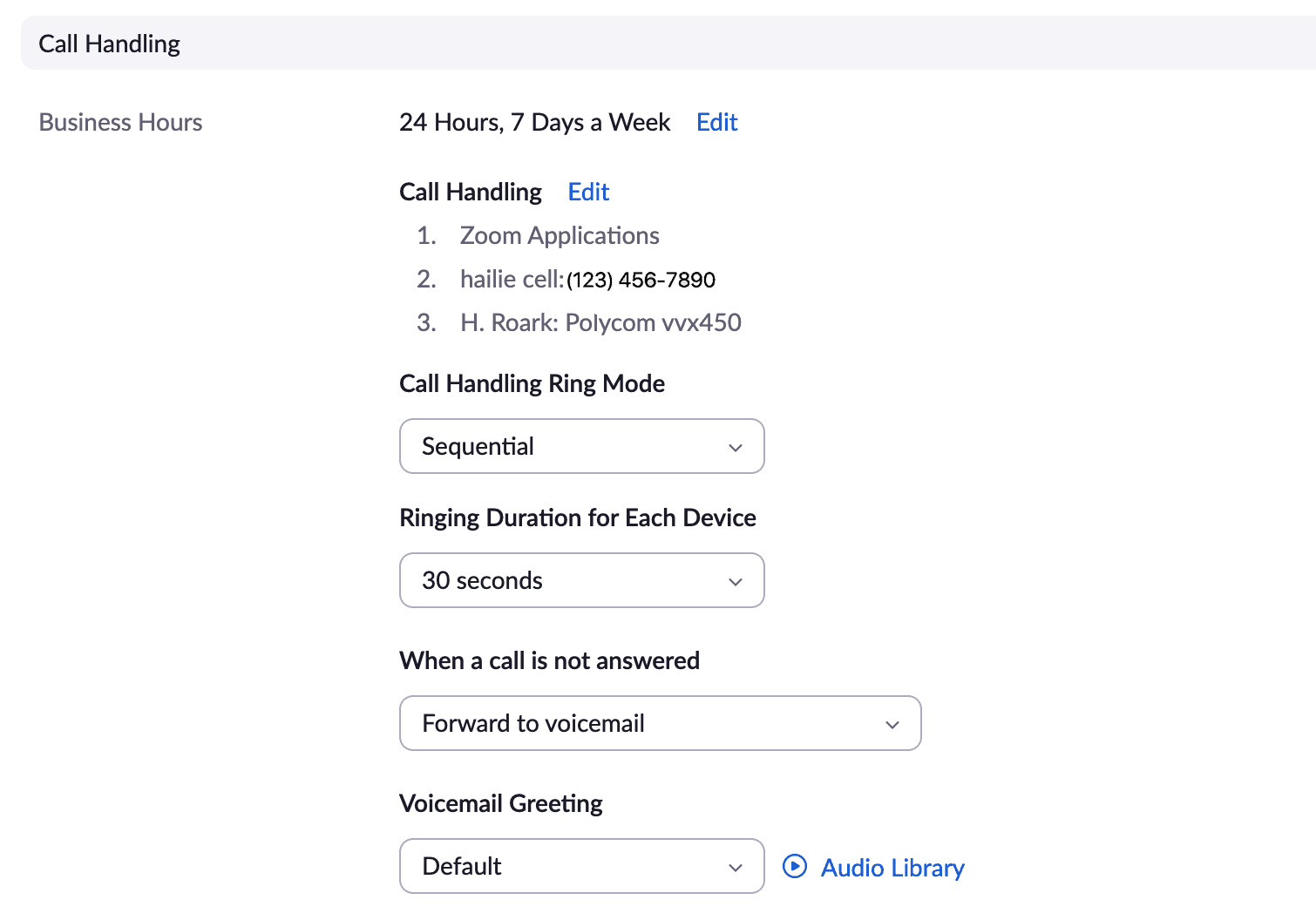
Step 3: Set Ring Mode & Duration
Choose Sequential Ringing so your devices ring first, Set each device to ring for 20–30 seconds before forwarding to AI Receptionist. This is a recommended duration to allow your team sufficient time to answer before AI Receptionist steps in.
Step 4: Configure “When I’m busy on another call”
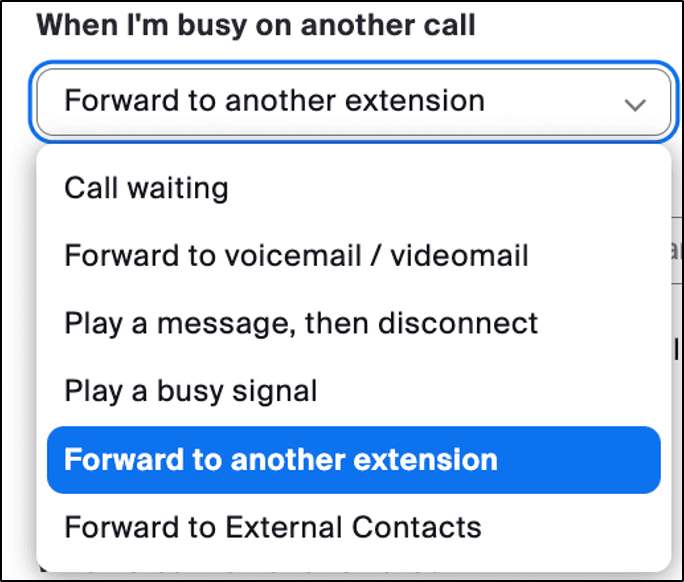
Under the Business Hours in Call Handling settings, Find When I’m busy on another call. From the dropdown, pick the AI Receptionist number.
Step 5: Configure “When a call is not answered”:
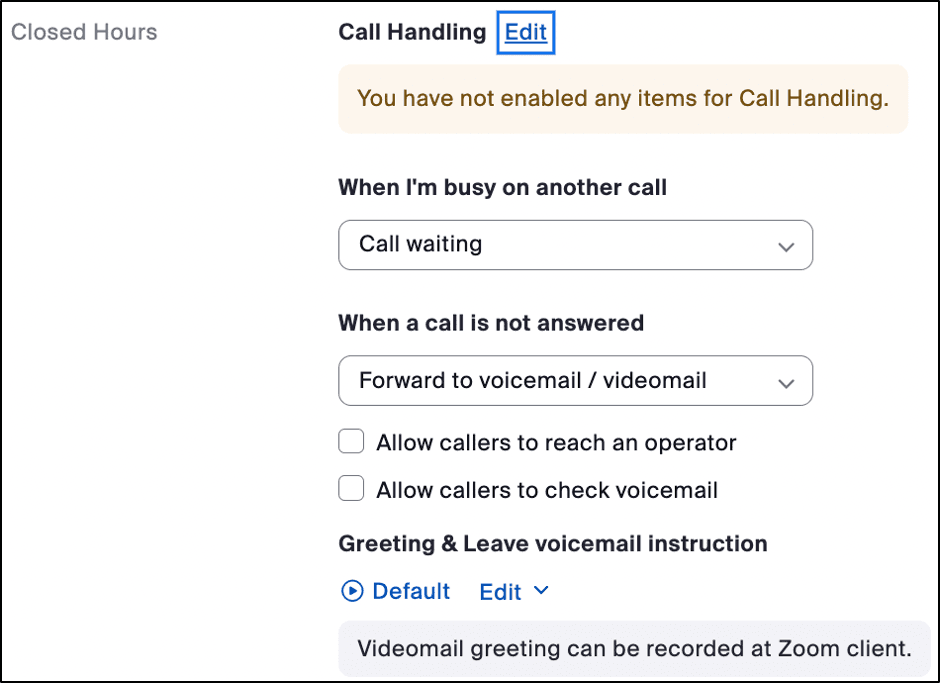
Under the Business Hours in Call Handling settings, Locate When a call is not answered. From the dropdown menu, Select the same AI Receptionist number.
Step 6: Turn Off the Press-1 Option
Make sure Require to press 1 is unchecked so callers get connected right away.
Step 7: Save Your Changes
Click on Save at the bottom of the Business Hours in Call Handling window to apply these settings.
Once these settings are in place, AI Receptionist will take over any time your Zoom Phone line is busy or a call goes unanswered, so your customers are always taken care of ensuring every customer interaction is handled professionally.
Scenario 3: Send All Calls to AI Receptionist
In case you prefer AI Receptionist to be the default response that answers your callers, enabling full-time forwarding makes all incoming calls arrive directly to your AI agent. This is perfect when you need to automate triage, collect basic information, and offload when necessary. Here is how:
Step 1: Add AI Receptionist‘s Number (If You Haven’t Already)
Make sure the AI Receptionist number is added under both Business Hours and Closed Hours (see Scenario 1 for how to do this).
Step 2: Route All Business Hour Calls to AI Receptionist
Go to Call Handling > Business Hours, then click Edit. Turn off all devices/apps under Route to (Zoom Desktop, Mobile, Desk Phone, etc.). Under When a call is not answered, choose the AI Receptionist number. Uncheck “Require to press 1.”
Step 3: Route All After-Hours Calls to AI Receptionist
In the Closed Hours section, click Edit. Again, turn off all device/app toggles. Set When a call is not answered to the AI Receptionist number. Make sure “Require to press 1” is unchecked.
Step 4: Save Your Changes
Click Save for both the Business Hours and Closed Hours sections to activate full forwarding.
Now, all incoming calls to your Zoom Phone number will be routed to your AI Receptionist agent providing consistent and automated service around the clock, This will allow you to focus on your core business.
Troubleshooting Tips
To make your experience seamless with setting up your Zoom Phone and AI Receptionist integration, here are some troubleshooting tips that would help you quickly identify and solve common issues:
- Test the AI Receptionist Number: First Call it directly from another phone to make sure it’s working before connecting it to Zoom.
- Turn Off the Press-1 Option: This setting causes most transfer issues. Make sure “Require to press 1” is unchecked for both Business and Closed Hours.
- Adjust Ring Duration: If AI Receptionist isn’t picking up during business hours, your team ring time may be too long. Try to set it to 20 – 30 seconds.
- Check Time Zone: Make sure your Zoom profile is set to the right time zone. Otherwise, business hour rules may trigger at the wrong time.
- Test Each Setup: Place test calls simulating each scenario (e.g., after hours, missed call, busy line) to confirm calls are routing correctly.
- Make Sure You Have Admin Access: If you can’t change call settings, you might need Zoom Phone admin permissions. Reach out to your Zoom admin if needed.
- Check the AI Receptionist Dashboard: Log into AI Receptionist to see incoming call logs and confirm calls are being received and handled.
Conclusion
When you connect AI Receptionist with Zoom Phone, you will get the ability to deal with calls 24/7 whether you need after-hours, overflow or full-time coverage. With the set of powerful routing and forwarding tools in Zoom Phone, no call can be lost, and AI Receptionist provides AI-driven interaction, helping to prequalify leads and serve customers in real-time. This strong integrated package improves your professionalism, responsiveness and operational effectiveness throughout the day.

Zoom Phone