Reviewed by Saad Z. Asif
|
Updated on July 8, 2026
Introduction
If you’re part of a team spread out across different cities, time zones, or job sites, nothing’s more important to getting the job done than being able to communicate with one another. There’s no hallway conversation, no quick desk check-in, and no reading the room in a morning standup. Everything from questions about processes to casual check-ins has to be done on purpose, and that requires the right tools.
Remote work has made digital communication tools a core part of how teams function, not a nice-to-have. The organizations that handle distributed work well have figured out which platforms serve which purposes (real-time messaging, video meeting, urgent updates, project discussions, etc). If you’re not sure which ones you should tap for which purposes, you’re already behind.
This guide covers the seven tools that work best for most remote teams, as well as what you can expect under the hood in terms of capabilities.
What Are Remote Team Communication Tools?
Before diving into the wider discussion of which tool is right for which purpose, let’s spend a little time establishing what a remote team communication tool is in the first place. It’s a pretty generic-sounding term, after all, and it could apply equally to everything from Google Sheets to Airtable.
Remote team communication tools are digital platforms that enable distributed teams to communicate, collaborate, and share updates through messaging, video meetings, notifications, and shared workspaces. They replace what you’d find happening in a physical office (popping by a coworker’s desk to ask a quick question, calling an impromptu meeting, or alerting everyone at once) with systems that work no matter where your team is located.
Remote team communication tools enable team collaboration, support communication for remote workers, facilitate real-time messaging, allow video conferencing, and provide notifications for teams. Remote team communication tools also connect distributed teams, streamline project discussions, increase productivity for remote teams, improve team coordination, and reduce communication barriers.
That said, these tools fall into a few categories:
Messaging platforms for day-to-day team channels and project discussions
Video conferencing for meetings and screen sharing
Notification systems for urgent team collaboration, updates, and mass text alerts
Project management tools that keep work organized and visible.
There’s not really a single tool that does it all, so most teams use a combination of them (and sometimes all four types).
Why Do Communication Tools Matter for Remote Workers?
The challenges remote teams face aren’t really all that different from those any team faces. They’re just harder to solve without being in the same physical area. Here’s what the right tools actually change:
Collaboration: Distributed teams can work just as fluidly as co-located ones when they have the right channels. Instant messaging, team to-do lists, shared workspaces, and real-time document editing cut down communication barriers.
Coordination: When everyone’s on a different schedule, coordinating teamwork isn’t simple. Meeting recordings, shared calendars, instant messaging, and documented team updates keep people synced.
Information Sharing: File sharing and centralized project discussions keep information from siloing in individual inboxes. When your whole team can see the context, decisions happen faster, and there are fewer mistakes.
Productivity: Mass text alerts and voice broadcasts let you reach your entire team immediately when something time-sensitive comes up, which means no chasing people down across platforms.
Top 7 Communication Apps for Remote Workers
While there are plenty of communication apps for remote workers out there, the seven below rank at the top for most teams.
1. DialMyCalls – Best for Urgent Team Notifications
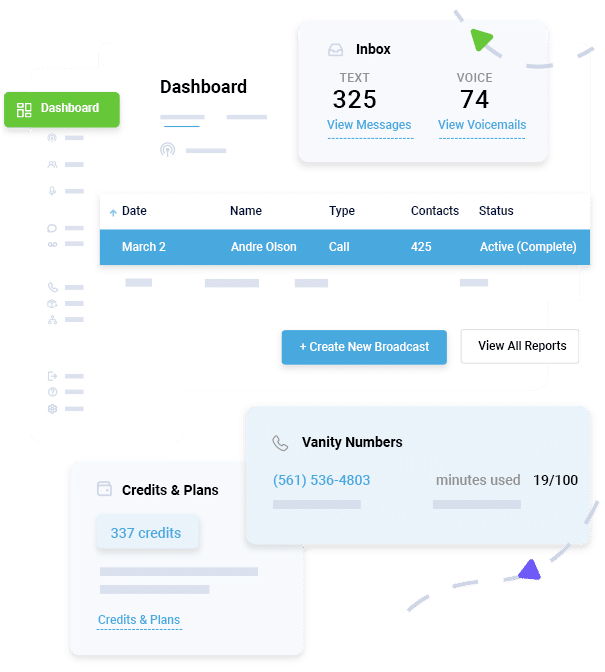
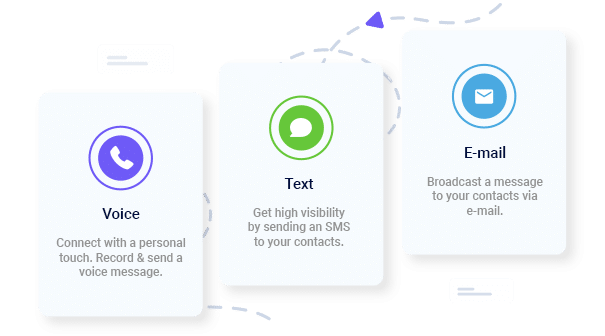
DialMyCalls is a mass notification platform that offers workplace messaging for your entire team immediately via text, voice call, or email, or all three at once. It’s designed for when speed matters and you need to make sure a message gets there rather than sitting unread in an inbox.
Most messaging and collaboration tools work well for planned communication. DialMyCalls handles unplanned, time-sensitive communication that can’t wait for someone to check Slack.
Features That Matter
Mass text alerts to your entire team simultaneously
Voice broadcasts for teams less likely to check written messages
Two-way texting so recipients can respond directly
Scheduling for planned announcements and regular team updates
API and integrations to connect with your existing systems
Mobile app for sending notifications from anywhere
How’s It Work for Remote Teams?
DialMyCalls is the right tool when you need everyone to know something right now (think emergency notifications like system outages, safety alerts, urgent operational changes, etc., time-sensitive updates that can’t rely on someone logging into a platform, and regular team-wide announcements). For organizations with field workers, contractors, or employees who aren’t at a desk all day, mass text alerts reach everyone.
2. Slack – Best for Day-to-Day Team Messaging
Most remote teams use Slack for their entire workday. It organizes conversations into team channels so discussions can be searched rather than being scattered across email threads.
The key thing Slack gets right is making communication easier without adding complications. You can message someone directly, post to a shared channel, react to a message with an emoji instead of sending a “got it” reply, or start a quick huddle when a thread is getting too long.
Features That Matter
Organized team channels
Direct and team messaging
Huddles for voice and video
File sharing and message search
Extensive integrations
Workflow automations
How’s It Work for Remote Teams?
Slack works best as the default channel for everything that isn’t a formal meeting. It’s where your team’s ongoing project discussions live, where you share files, ask quick questions, and keep async communication organized.
3. Microsoft Teams – Best If You’re Already on Microsoft 365
Microsoft Teams gives you messaging, video, file sharing/collab, and project organization all on a single platform, and if you already use Microsoft 365, you really can’t beat the integration.
For organizations that run on Microsoft infrastructure, Teams might even eliminate the need for a separate messaging app, video tool, and file storage system. Everything’s in one place, and permissions carry over from your existing Microsoft environment.
Features That Matter
Team channels + direct messaging
Video meetings with screen sharing and meeting recordings
Word, Excel, PowerPoint, and SharePoint integration
Meeting transcription and recap
Large meeting and webinar support
Advanced admin controls for enterprise organizations
How’s It Work for Remote Teams?
Teams is a great choice for businesses that need a single platform that can handle everything from document collaboration to messaging (especially if your go-to is MS 365). The meeting recordings and transcriptions are very useful for teams in different time zones that need asynchronous access to meeting content.
4. Zoom – Best for Video Meetings and Webinars
Zoom is the most-used tool for video conferencing for a reason: it’s reliable, easy to join, and handles small team meetings and large all-hands calls. The video and audio quality are good, and you get things like screen sharing, breakout rooms, and recording that make it more than a basic video call tool. Another big benefit here is that Zoom is really simple to use, and people can join a call without creating an account or downloading anything.
Features That Matter
HD video meetings with screen sharing
Breakout rooms
Meeting recordings with cloud storage
Webinar tools
Polling and Q&A
AI-generated meeting summaries and transcripts
How’s It Work for Remote Teams?
Zoom is a good choice for things like video calls, client communication, team training, and all-hands meetings. The recording and transcript features make it easy to share meeting content with others. If your remote work involves regular external-facing meetings, Zoom’s easy join experience gives it an edge.
5. Google Meet – Best for Teams on Google Workspace
Google Meet is a video conferencing software built directly into Google Workspace. If your team runs on Gmail, Google Calendar, and Google Drive, you’ll appreciate how everything works together.
While Meet has fewer features than Zoom, it covers everything most teams need for basic meetings. The integration with the rest of Google Workspace is its biggest advantage.
Features That Matter
Video meetings integrated with Google Calendar
Screen sharing and real-time captions
Recordings saved to Google Drive
Live transcription + translated captions
Works in-browser without a desktop app
Noise cancellation
How’s It Work for Remote Teams?
Google Meet is the right choice for teams that live in Google Workspace (but may not be a great choice if you don’t). Scheduling a meeting takes seconds since the link is in the Calendar invite, recordings are automatically accessible to anyone with Drive access, and the browser-based experience means nothing to install or update.
6. Discord – Best for Informal Communication and Community
Discord started as a gaming platform and has grown into a serious remote work communication tool, particularly for teams that want a more casual, persistent communication environment. The voice channel model (where you “join” a channel and can hear and talk to whoever else is there, without scheduling a formal meeting) gives you something closer to a virtual office than what you get with most tools.
Features That Matter
Persistent voice channels (drop in and out without scheduling)
Text channels organized by topic or team
Screen sharing within voice channels
Roles and permissions for organizing large communities
Bots for automating announcements and team updates
Free tier with generous functionality
How’s It Work for Remote Teams?
Discord works best for teams that want a casual, always-on communication option alongside their other tools. It’s most effective for creative teams, startups, developer communities, and any distributed team trying to get the ambient social energy of a physical office (plus, there’s a free tier).
7. Trello – Best for Visual Project Organization
Let’s be clear, Trello isn’t a messaging platform. Instead, it’s designed for managing projects. It gets a place on this list because clear project visibility is one of the most common communication failures for remote teams. When everyone can see what’s ongoing, blocked, and done, most status-update conversations become unnecessary.
Trello’s Kanban-style boards are intuitive enough that most teams are up and running within an hour. Cards can hold checklists, attachments, due dates, and comments, so discussions on them stay tied to the actual work rather than scattered across channels.
Features That Matter
Visual Kanban boards
Cards with checklists, attachments, due dates, and comments
Multiple board views
Automate tasks/status changes
Integrations with most other tools
Free tier
How’s It Work for Remote Teams?
Trello is the right tool when your team needs shared visibility into who’s doing what and where things stand. It reduces the need for status-update meetings because the status is already visible. It’s one of the most effective ways to keep work organized without adding another meeting to the calendar for remote teams managing multiple projects/coordinating across departments.
Instant Communication, Whenever You Need It
Send Real-Time SMS & Voice Call Alerts from Anywhere
The tools we’ve covered will help with communication, but you still need to use them to their best advantage.
Don’t let everything pile into the same place. Decide upfront where urgent notifications go (DialMyCalls for time-sensitive alerts), where ongoing project discussions live (Slack or Teams), where scheduled meetings happen (Zoom or Meet), and where project status is tracked (Trello).
The right tool for the job. A question that needs an answer in the next five minutes shouldn’t go into a Trello card comment. An update that doesn’t need a response today doesn’t warrant a mass text alert.
Make regular check-ins part of your process. Async communication is fine, but it can lead to a feeling of disconnection. Weekly team video calls, brief daily standups, or regular all-hands updates keep teams coordinated.
Post updates in a place people can find them. Verbal decisions in a Zoom call disappear unless someone captures them. Shared notes, recorded meetings, and searchable channel history in Slack mean that team updates don’t require everyone to have been in the same room at the same time.
Respect async by default. Not every message needs an immediate response. Make sure that team members know when responses are expected and keep your conversations organized. Most importantly, don’t expect everyone to be always on.
Frequently Asked Questions
What are communication tools for remote workers?
Remote team communication tools help replicate the in-office experience when teams are separated by distance and time. You’ll find a lot of different options out there, and there’s no one-size-fits-all solution.
Why are communication apps important for remote teams?
Without being in the same physical space, the informal communication of an office doesn’t exist. Communication apps replace that with systems that keep remote teams coordinated and informed. Not using the right tools can mean slower decisions, more duplicated work, more mistakes, and higher turnover.
What features should remote communication tools include?
That depends on your team’s needs, but a remote communication stack should cover real-time messaging, video meetings with recording capability, file sharing, and a way to reach your entire team immediately with urgent notifications. It’s also important that the tool plays nice with your existing tech stack.
Which communication apps are best for distributed teams?
There’s no single answer because different tools serve different functions. Most distributed teams use a combination that works for their needs.
Keep Your Team Together Even When They’re Not
Remote work doesn’t fail because of distance. It fails because of communication problems and not having the right tools in place.
The seven platforms in this guide cover everything from mass notifications that reach everyone immediately, messaging that keeps project discussions organized, video meetings that make collaboration feel human, and more. No one tool covers all of that, but together, they reduce communication barriers, increase team coordination, and give distributed teams the infrastructure they need to function as well as or better than teams in a single office.
Keep Everyone Connected & Informed
Get the Word Out Quickly with Bulk Texting and Voice Calls
Tim Smith is the Media Manager at DialMyCalls, where he has leveraged his expertise in telecommunications, SaaS, SEO optimization, technical writing, and mass communication systems since 2011. Tim is a seasoned professional with over 12 years at DialMyCalls and 15+ years of online writing experience.
“I am a youth minister and have spent hours in the past calling students individually to remind them of an upcoming event or to get out an urgent announcement. With DialMyCalls.com, I cut that time down to about 1 minute. I also love how I can see exactly who answered live and how long they listened so I know if they heard the whole message. DialMyCalls.com is the best website I have stumbled upon all year! Thanks!”
Real Results, Real ReviewsOver 40,000 customers trust our platform – and it shows.
4.3
502 Reviews
4.7
836 Reviews
Author
Tim SmithMedia Manager
Tim Smith is the Media Manager at DialMyCalls, where he has leveraged his expertise in telecommunications, SaaS, SEO optimization, technical writing, and mass communication systems since 2011. Tim is a seasoned professional with over 12 years at DialMyCalls and 15+ years of online writing experience.
“I am a youth minister and have spent hours in the past calling students individually to remind them of an upcoming event or to get out an urgent announcement. With DialMyCalls.com, I cut that time down to about 1 minute. I also love how I can see exactly who answered live and how long they listened so I know if they heard the whole message. DialMyCalls.com is the best website I have stumbled upon all year! Thanks!”
Fill out the form below to get a fast custom pricing quote specific for your
organization.Want to speak to our sales team now? Call us at
1-800-928-2086
Thank you!
A representative will be reaching out to you soon.
For immediate help you can call us on
800-928-2086.
Try Out DialMyCalls Now?
Enter a new password and click create account and you'll be able to send 25 test messages now.
Send A Sample Broadcast
We'll send a sample call or text to your phone right now. Remember when you use DialMyCalls you can record your message in your own voice. When the phone rings just pick up and say "Hello" to hear the message.